
Purchase Orders
Purchase Orders
The Purchase Orders module in OBS ERP allows you to create and manage orders placed with suppliers. Each purchase order captures all the key information about what is being ordered, from whom, by whom, and under what financial conditions. Once created, a purchase order moves through a defined workflow of statuses that reflect its progress from creation to completion.
Statuses
Each purchase order progresses through the following statuses, displayed as a visual workflow at the top of the record. You can advance the status by clicking on the next step in the workflow bar. The current active status is highlighted, and previously completed steps are marked with a checkmark.
- Draft: The purchase order has been created but has not yet been confirmed internally. This is the starting point for every new order.
- Confirmed: The order has been reviewed and confirmed internally. It is ready to be sent to the supplier.
- Confirmed by supplier: The supplier has acknowledged and confirmed the order. The order is now agreed upon by both parties.
- In process: The order is currently being fulfilled — items are being produced, prepared, or shipped by the supplier.
- Completed: All items have been delivered and the order has been fully fulfilled.
Form Fields
When creating or editing a purchase order, the form is divided into four sections: Buyer, Supplier, Information, and Financials. Each section groups related fields together.
Buyer
This section identifies the internal party placing the order.
- Buyer * — The company (from your own companies) that is placing the purchase order. This is a required field.
- Responsible * — The staff member responsible for managing this purchase order. This is a required field.
Supplier
This section identifies the external party from whom the goods or services are being ordered.
- Supplier — The company supplying the ordered items. You can search for an existing supplier from your contacts database.
- Contact — The specific contact person at the supplier company to be used for this order.
Information
This section captures the key dates and reference number for the purchase order.
- Purchase order no — An optional reference number for the purchase order. This can be an internal reference or the supplier's order number.
- Start date — The date the purchase order was initiated. This field is set automatically.
- Shipping Date — The date on which the supplier is expected to ship the ordered items.
- Expected delivery on — The date on which the items are expected to arrive at your location.
Financials
This section defines the financial and tax settings that apply to the entire purchase order.
- Warehouse — The warehouse or site location where the ordered items will be delivered and stored.
- Taxes * — Specifies how VAT is applied to this order. Options include with VAT, without VAT, or no VAT charged. This is a required field.
- Tax rate * — The specific VAT percentage to be applied to the order (e.g. 20%). This is a required field.
- Currency * — The currency in which the purchase order is issued (e.g. EUR, BGN, USD). This is a required field.
Comments
A free-text field where you can add any additional notes, instructions, or remarks related to the purchase order. This field supports rich text formatting.
Attachments
You can attach files directly to the purchase order using the Attachments section at the bottom of the form. Click the upload area or drag and drop files to attach quotes, contracts, or any other relevant documents.
Purchase Order Items
The Items section is a sub-table at the top of the purchase order record. It lists all the individual items — materials, services, or products — that are part of the order. Each item is added as a separate row and can be tracked independently through the fulfilment process. To add a new item, click the Add button above the items table.
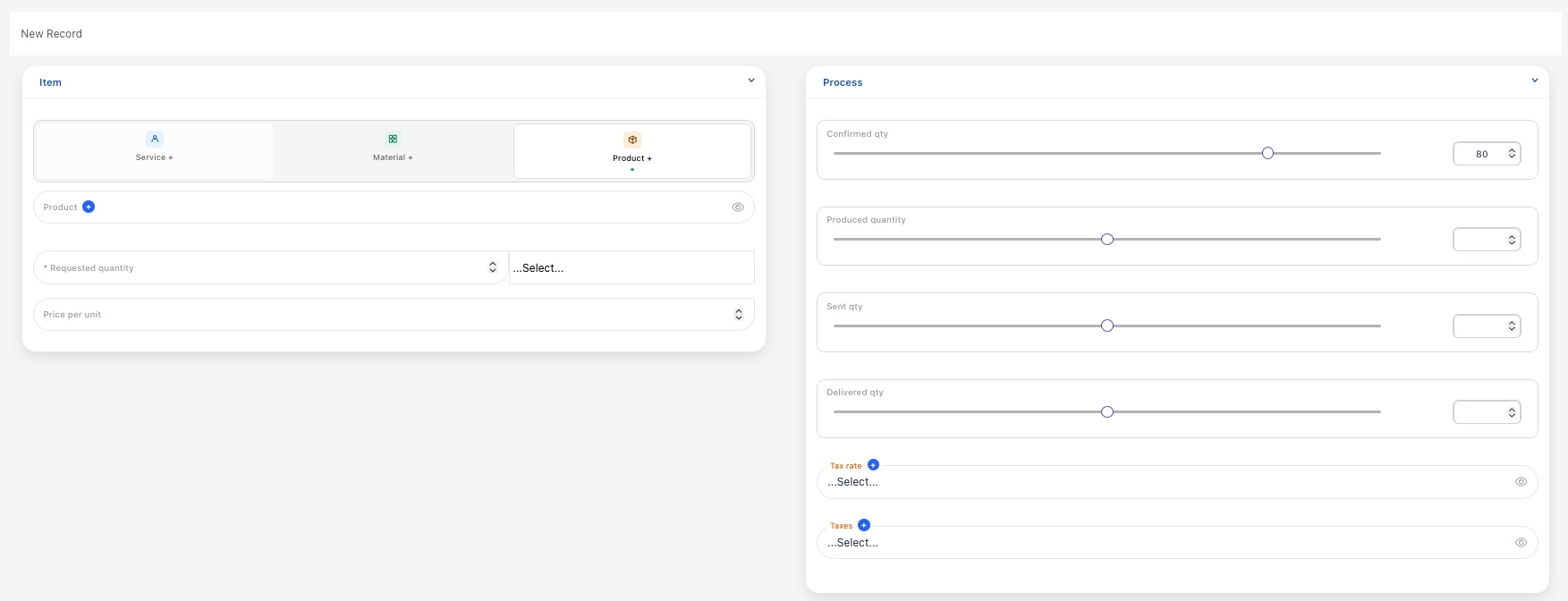
Purchase Order — Items table
Item
When adding a new item, you first select the type of item you are ordering using the type selector. There are three options:
- Service — Select this if the item being ordered is a service. You can then search for and select the specific service from your services database.
- Material — Select this if the item being ordered is a raw material or construction material. You can then search for and select the specific material from your materials database.
- Product — Select this if the item being ordered is a finished product. You can then search for and select the specific product from your products database.
Only one type can be selected per item row. Once you select a type, the corresponding search field appears for you to choose the specific item.
- Requested quantity * — The quantity of the item being ordered. This is a required field. A unit of measure must also be selected alongside the quantity (e.g. kg, m2, m3, hours, pieces).
- Price per unit — The agreed price per unit for the item as quoted by the supplier.
Process
The Process section tracks the fulfilment progress of each individual item. Each field uses a slider that ranges from 0 up to the requested quantity, allowing you to visually set and update the current value. You can also type the value directly into the number field next to the slider.
- Confirmed qty — The quantity that the supplier has confirmed they can supply. This may differ from the requested quantity if the supplier has limited stock or capacity.
- Produced quantity — The quantity that has been produced or prepared by the supplier so far.
- Sent qty — The quantity that has been dispatched and is currently in transit.
- Delivered qty — The quantity that has been physically received and accepted at your location.
- Tax rate — The VAT percentage applied specifically to this item, if it differs from the order-level tax rate.
- Taxes — The tax treatment for this item (e.g. with VAT, without VAT, or no VAT charged).
Distribute Items to Tasks
Once items have been added to a purchase order, they can be distributed and linked to specific WBS tasks in the project. This is done using the Distribute by tasks button, which opens the Allocate purchase order items modal.
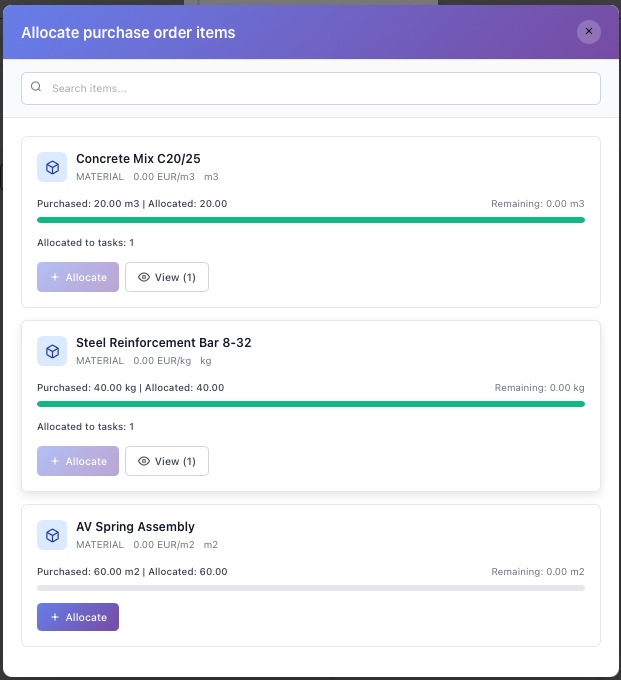
Purchase Order — Allocate purchase order items
The modal lists all items from the purchase order. Each item card displays the following information:
- Item name and type — The name of the material, service, or product, along with its type label, unit of measure, and price per unit.
- Progress bar — A visual indicator showing how much of the purchased quantity has already been allocated to tasks. A fully green bar means the entire quantity has been distributed.
- Purchased / Allocated / Remaining — A summary line showing the total purchased quantity, how much has been allocated so far, and how much is still available to distribute.
- Allocated to tasks — Shows the number of tasks this item has already been linked to.
Each item card has two action buttons:
- Allocate — Opens the allocation form where you can assign a quantity of this item to a specific WBS task. This button is disabled if the entire quantity has already been fully allocated.
- View — Shows the existing allocations for this item, including which tasks it has been assigned to and in what quantities. The number in brackets indicates how many task allocations currently exist for that item.
You can use the Search field at the top of the modal to filter items by name, making it easier to find a specific item in purchase orders with many lines.